
Networking Solutions in Singapore
Reliable network infrastructure for offices, CCTV systems, access control, intercoms and connected security equipment.
Web Security provides network setup, expansion and troubleshooting for businesses that need stable connectivity between devices, switches, routers, wireless access points and security systems.
Connect the System Properly From End to End
Network Infrastructure for Connected Office & Security Systems
A stable network is more than just internet access. CCTV cameras, recorders, access control, intercoms, wireless devices and office equipment all depend on the right network design and connection path.
Router & Internet Connection
The router provides the main connection between the local network and external internet services where required.
Network Switches
Network switches connect multiple wired devices and provide the internal data path between cameras, recorders, PCs, access points and other network equipment.
PoE Network Connections
Power over Ethernet can carry both network data and power through one compatible cable for devices such as IP cameras, wireless access points and selected security equipment.
WiFi & Wireless Access Points
Wireless access points can extend WiFi coverage across offices, retail spaces and other commercial environments where a single router may not provide sufficient coverage.
Network Points & Structured Cabling
Proper network points and cable routes provide reliable wired connections between equipment rooms, workstations and connected systems throughout the site.
Each Layer Has a Different Job
CCTV and Security Systems Depend on the Network Behind Them
IP cameras, NVRs, access control, intercoms and remote viewing all rely on stable connectivity. When the network path is weak or poorly planned, the security system may appear unreliable even when the devices themselves are still working.
Cameras Need Stable Data Paths
Network cameras depend on the switch, cabling, PoE connection and recorder network path. A weak connection can affect live view, recording access or remote viewing.
Controllers and Readers May Share the Network
Network-based door access systems may rely on LAN connectivity between controllers, management software and other connected devices.
Intercom Performance Can Depend on Network Quality
IP-based intercom systems may require reliable internal network communication between door stations, indoor monitors and other connected components.
Remote Viewing Needs More Than Just Internet
Router settings, device connectivity and the internal network path all matter when CCTV or security systems are accessed remotely.
One Network, Multiple Connected Systems
Check device power, PoE, cable and network path.
Check internet, router and recorder connectivity.
Review cable, switch port and network stability.
Review IP settings, available ports and network design.
Build the Network Around How the Office Actually Operates
A small office and a larger workplace do not need the same network layout. The number of users, access points, security devices, workstations and future expansion should all be considered before equipment is added.
Plan the Network Before Everything Is Installed
For a new office, network points, equipment locations and device requirements can be planned together before the final setup is completed.
Expand Without Replacing Everything
Existing offices often need more network capacity because new staff, cameras, access points or other connected devices have been added over time.
The Network Usually Has to Grow With It
Additional staff may require more wired or wireless connections.
Larger offices may need additional access points for more consistent coverage.
CCTV, access control and intercom expansion can increase network and PoE requirements.
More connected devices may require additional ports or higher-capacity equipment.
PCs, phones, cameras, APs, access controllers and other network equipment.
Consider equipment rooms, desk locations, ceilings and cable routes.
Avoid designing the system around only the exact number of devices needed today.
When the Network Is the Problem, Devices Can Look Faulty
Slow connections, unstable WiFi, offline devices and remote-access issues can often come from the network path rather than the end device itself. A proper check helps identify where the actual problem starts.
Slow or Unstable Wireless Connection
Weak coverage, interference, overloaded access points or poor device placement can make the wireless network feel inconsistent.
Camera, Recorder or Other Device Goes Offline
An offline device may be caused by loss of power, PoE issues, damaged cabling, switch-port problems or network configuration.
Not Enough Network or PoE Ports
Existing switches may run out of available ports when new cameras, access points, workstations or other connected devices are added.
Device Has Network Cable but No Power
A connected device may still fail to power up if the switch port, PoE standard, power budget or cable condition is unsuitable.
IP Conflict or Incorrect Network Settings
Incorrect IP addresses or duplicate addresses can prevent devices from communicating properly even when the physical connections are fine.
System Works Locally but Not Remotely
If a device works on the local network but cannot be accessed remotely, the router, internet connection or remote-access configuration may need to be checked.
Check the Connection From One End to the Other
Not Every Site Needs a Complete Network Replacement
Some offices need a full network designed from scratch, while others may only need additional switches, access points, network points or selected equipment upgrades.
Start With the Layout and Device Requirements
A new office or renovated site gives more flexibility to plan network points, equipment locations and cable routes before the rest of the systems are installed.
Keep What Still Works and Improve the Weak Points
Existing infrastructure can often be reviewed first. If the cabling, switches, router or access points are still suitable, they may not all need to be replaced.
Keep, Review or Upgrade?
Existing cabling or equipment may remain if condition, capacity and compatibility are still suitable.
Switches, routers or access points that still work may need review if performance or available capacity is becoming limited.
Equipment causing recurring connectivity, capacity or compatibility problems may be better replaced or expanded.
Good Network Performance Starts With the Physical Setup
Network reliability depends not only on the router or switch, but also on cable quality, equipment placement, PoE capacity and how cleanly the system is arranged for future maintenance.
Plan the Cable Route Properly
Network cables should be routed based on device locations, accessibility and practical maintenance requirements.
Check Power Over Ethernet Requirements
PoE devices such as IP cameras and access points require compatible switches and sufficient PoE power capacity.
Keep Core Equipment Accessible
Routers, switches and related network equipment should be positioned where technicians can access, identify and service them efficiently.
Make Future Troubleshooting Easier
Clear cable and port identification can reduce time spent tracing connections when devices are moved, upgraded or repaired later.
From Equipment Point to End Device
One Cable Can Carry Both Power and Network Data
Damaged or poorly terminated cables can create intermittent network problems.
The switch must have enough compatible power capacity for connected PoE devices.
Spare ports make future expansion easier when additional devices are added.
Network equipment should have suitable airflow and should not be packed into an unsuitable space.
Real Cabling, Configuration & System Setup
Networking work is often part of a wider security or office-system installation. These examples show real cabling, configuration and equipment work carried out on site.
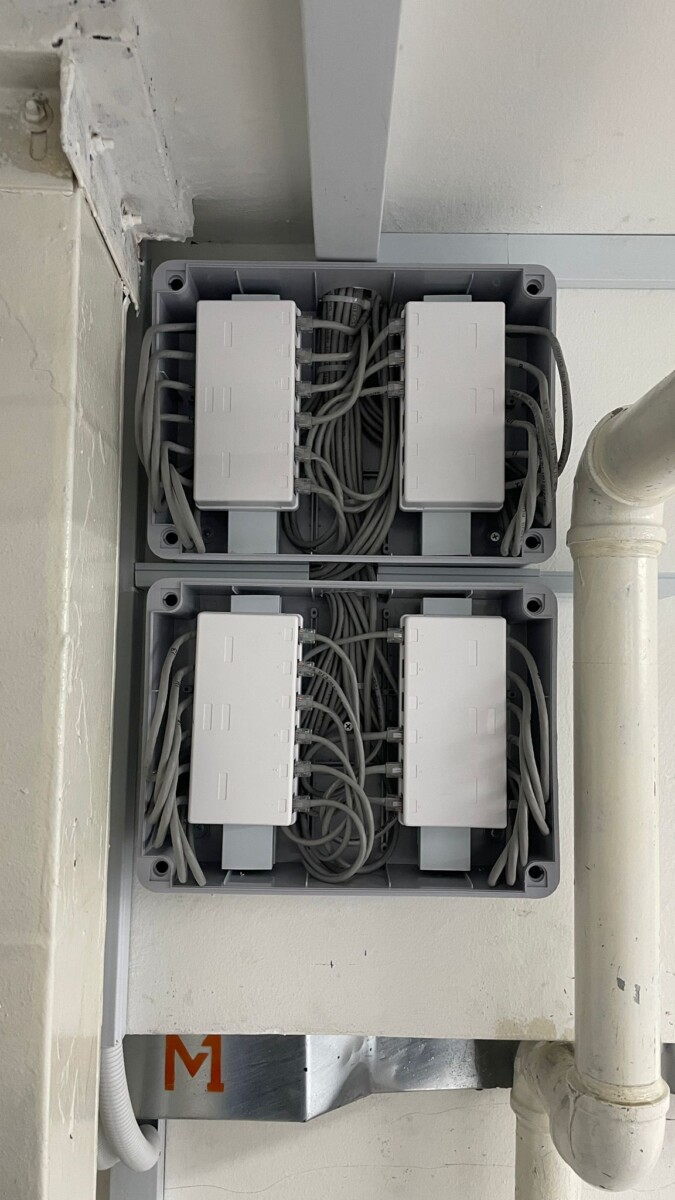
Clean Cable Management
Clear cable routing and organised connections make future expansion and troubleshooting easier.
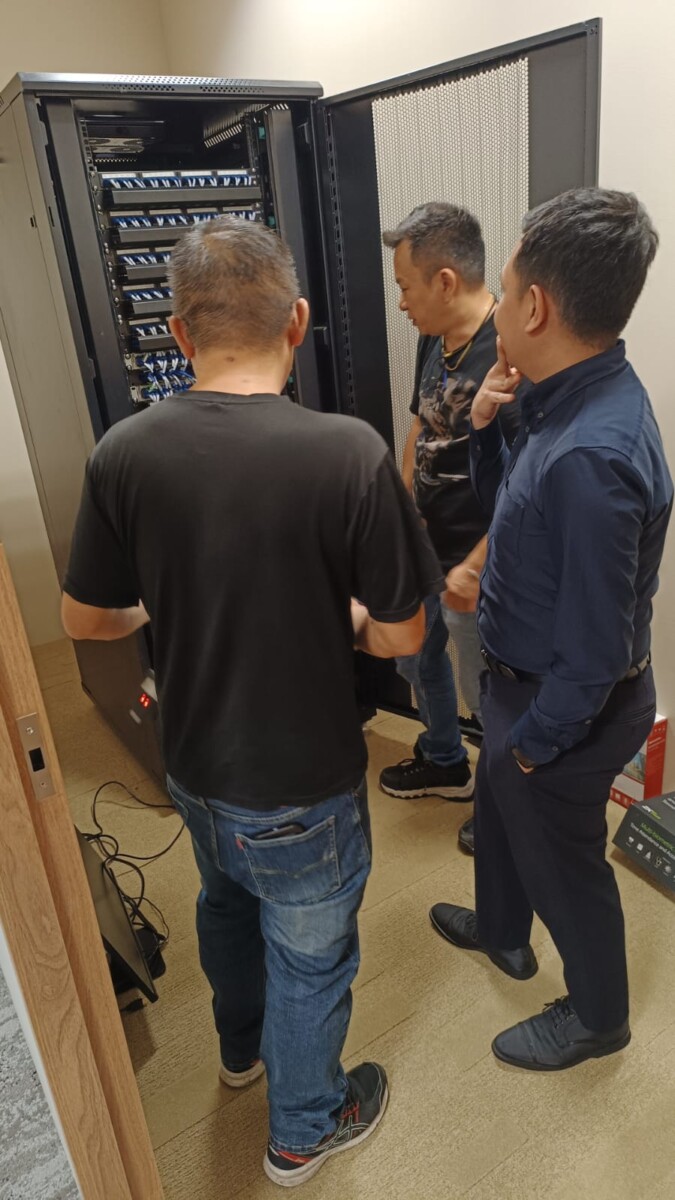
Wiring & Connection Work
Physical connections should be arranged so devices can be identified and serviced more easily later.
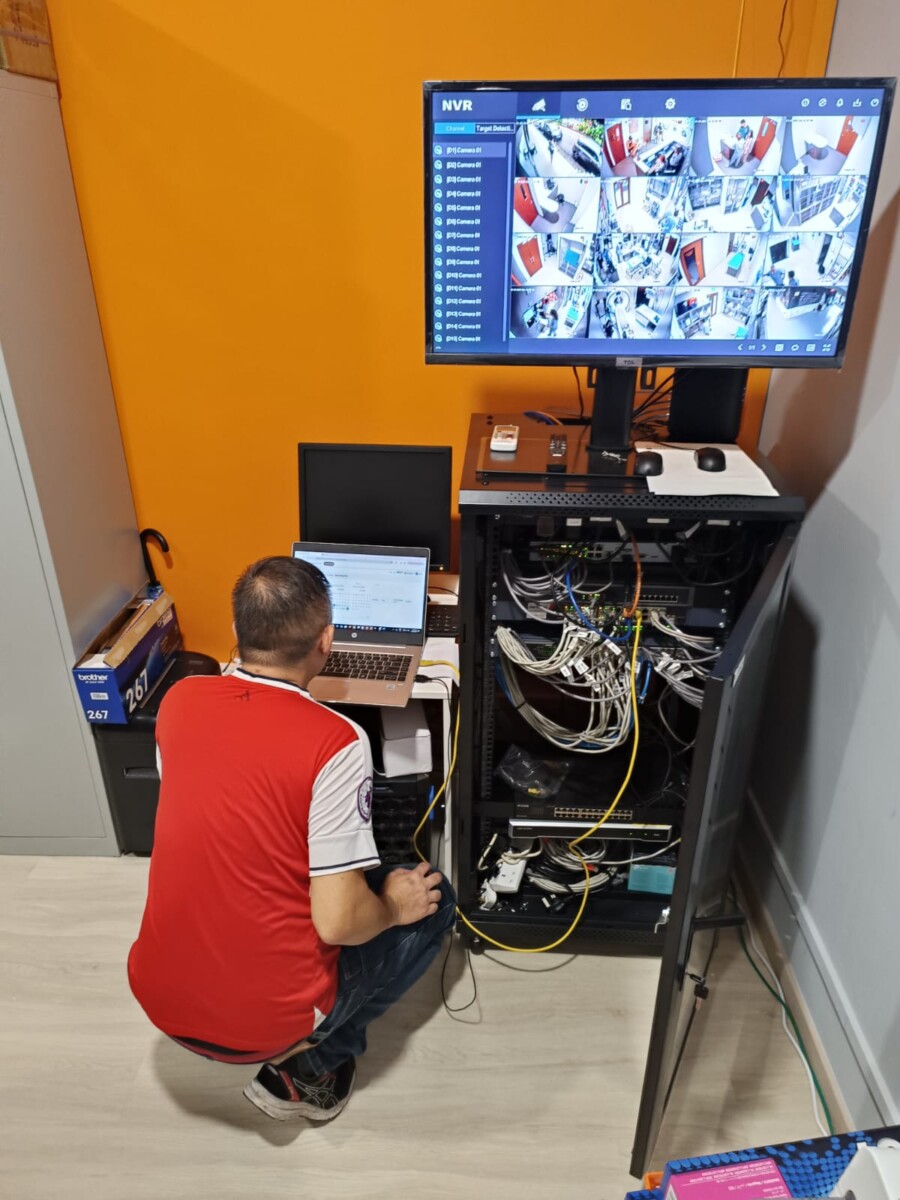
Network & Device Troubleshooting
Connectivity issues may require both device and network configuration to be checked together.

Security System Configuration
Network infrastructure may support connected security systems such as access control, CCTV and other IP-based equipment.
Cabling, equipment positioning and connection work.
Device connectivity, switch ports and system communication.
Identify whether the issue is with the network path or end device.
Cleaner layouts make later expansion and servicing easier.
Tell Us About Your Network Setup
Need a new office network, better WiFi coverage, additional network points or help with an existing connection problem?
Tell us what equipment is already in place, what devices need to be connected and what problem you are trying to solve.
What Type of Site?
Office, retail shop, warehouse, commercial unit or another business location.
What Do You Need Connected?
Workstations, WiFi access points, CCTV cameras, recorders, access control, intercoms or other network devices.
New Setup or Existing Network?
Let us know whether you are starting from scratch, expanding an existing network or troubleshooting a current connection issue.